Building Comfort
17 minute read
Imagine you manage a building and want to know — the instant it happens — when any room becomes uncomfortable: too hot, too cold, or stuffy with CO2. You don’t want to poll sensors on a timer or wire up a stream processor by hand. You just want to describe what “uncomfortable” means and have something watch every room, floor, and the whole building for you, continuously.
This tutorial builds a Building Comfort monitoring demo with drasi-lib, the Python binding that embeds Drasi’s continuous-query engine directly in your app. A PostgreSQL database holds a building made of floors and rooms, each room reporting temperature, humidity, and co2. You’ll run a single Streamlit program that starts the engine, watch a live UI light up, and then change room readings and see everything react in real time. Instead of a built-in dashboard reaction, the UI is rendered from a Python reaction — a callback that receives each query’s changes and updates the screen.
What you’ll build: a Streamlit app that embeds Drasi, connects to PostgreSQL, and reacts to room sensor changes in real time, assembled from Drasi’s three core building blocks:
| Step | What You’ll Do | Time |
|---|---|---|
| Step 1: Set Up Your Environment | Open the dev container (or install Python + Docker locally) | 5 min |
| Step 2: Run the Demo | One command starts PostgreSQL and the Streamlit app | 3 min |
| Step 3: Open the UI | Watch comfort levels and alerts live | 2 min |
| Step 4: Drive Change | Set, reset, and simulate rooms from the sidebar — and watch Drasi react instantly | 5 min |
| How It Works | Understand the source, the six queries, the synthetic joins, and the Python reaction | 5 min |
- One process: the Streamlit app embeds the Drasi engine, so there’s just one command to run. It stays in the foreground.
- Working directory: run every command from the tutorial directory (
tutorials/building-comfort/). The dev container opens there automatically; if you’re running locally,cd tutorials/building-comfortfirst. - Command tabs: commands are shown in tabs (bash / zsh and PowerShell) — use the one for your shell. The dev container and Codespaces use bash.
- Ports: the Streamlit UI is on
8501and PostgreSQL is published on5732.
Step 1 of 4: Set Up Your Environment
The easiest way to follow this tutorial is the dev container, which installs everything for you. You can also run locally if you prefer.
Option A: Dev Container or GitHub Codespaces (recommended)
VS Code (local dev container)
- Open the
drasi-pythonrepository in VS Code. - Run Dev Containers: Reopen in Container.
- When prompted for a configuration, choose Building Comfort Tutorial (Python).
- Wait for the container to finish. Its setup script installs the tutorial’s Python dependencies (
drasi-lib,streamlit,psycopg) and the Docker tooling for PostgreSQL.
GitHub Codespaces
The default Create codespace button does not ask which configuration to use. Pick the tutorial config explicitly:
- On the
drasi-pythonrepo page, open the green Code menu and select the Codespaces tab. - Open the
...menu next to Create codespace on … and choose New with options…. - Under Dev container configuration, select Building Comfort Tutorial (Python), then create the codespace.
- Wait for the container to finish. Its setup script installs the tutorial’s Python dependencies (
drasi-lib,streamlit,psycopg) and the Docker tooling for PostgreSQL.
That’s it — skip ahead to Step 2.
Option B: Run Locally
You’ll need Python 3.10+, Docker (for PostgreSQL), and bash for the helper scripts (on Windows use Git Bash or WSL, or run the PowerShell scripts). From the repository root, move into the tutorial directory and install the dependencies:
cd tutorials/building-comfort
python3 -m venv .venv && source .venv/bin/activate
pip install -r requirements.txt
cd tutorials/building-comfort
python -m venv .venv; .venv\Scripts\Activate.ps1
pip install -r requirements.txtdrasi-lib ships as a prebuilt wheel, so no Rust toolchain is needed. It downloads the Postgres plugins it needs from ghcr.io/drasi-project the first time the app runs.
Step 2 of 4: Run the Demo
In your terminal, start the demo:
bash scripts/start-demo.shpowershell -ExecutionPolicy Bypass -File scripts/start-demo.ps1The start-demo script does two things: it starts PostgreSQL (seeding one building, three floors, and nine rooms — every room comfortable to begin with) and then launches the Streamlit app.
On first start, the app’s embedded engine downloads the plugins it needs (source/postgres, bootstrap/postgres) from ghcr.io/drasi-project and caches them under ~/.drasi/plugins, connects to the database, and starts the six continuous queries and the reaction. Streamlit prints a URL like the following when it’s ready:
You can now view your Streamlit app in your browser.
Local URL: http://localhost:8501
Leave this running. Everything else happens in your browser.
Press Ctrl+C in the terminal to stop the app. To remove the database container when you’re completely done, run bash scripts/cleanup.sh (bash) or powershell -ExecutionPolicy Bypass -File scripts/cleanup.ps1 (PowerShell). Add --volumes (bash) or -RemoveVolumes (PowerShell) to also delete the data.
Step 3 of 4: Open the UI
The app renders the building from the Python reaction — there’s no separate dashboard server. Wait until the app has finished starting (on the first run this takes ~30 seconds while the plugins download and the queries bootstrap), then open it in your browser:
http://localhost:8501
In the dev container or Codespaces, port 8501 is forwarded automatically — VS Code shows a notification when the app is ready, and you can also open it from the Ports panel.
You’ll see the Building Comfort UI:
- Building Comfort (the main panel) — the building grouped by floor, with each room’s comfort level and sensor readings. Every room starts at comfort
46(comfortable). - Overall — the building’s overall comfort level as a number and a meter.
- Comfort alerts and Floor alerts — empty for now; rooms and floors appear here only when they need attention.
- Floor comfort — a table of each floor’s comfort level.
The UI refreshes on its own — the reaction updates a shared snapshot the moment the data changes, and Streamlit renders it. Let’s make something change.
Step 4 of 4: Drive Change
Everything you need is in the sidebar on the left. Use it to change room readings and watch Drasi react.
The sidebar controls don’t call the Drasi engine directly. Each one runs a plain SQL UPDATE against PostgreSQL (through psycopg) — exactly what an existing building-management app would already do. There’s no API to call and no event to publish. Drasi observes the row change through PostgreSQL’s logical replication (CDC), re-evaluates the affected queries, and calls the Python reaction, which updates the UI. The set/reset/simulate buttons are a thin front end over a single UPDATE statement.
Set a room
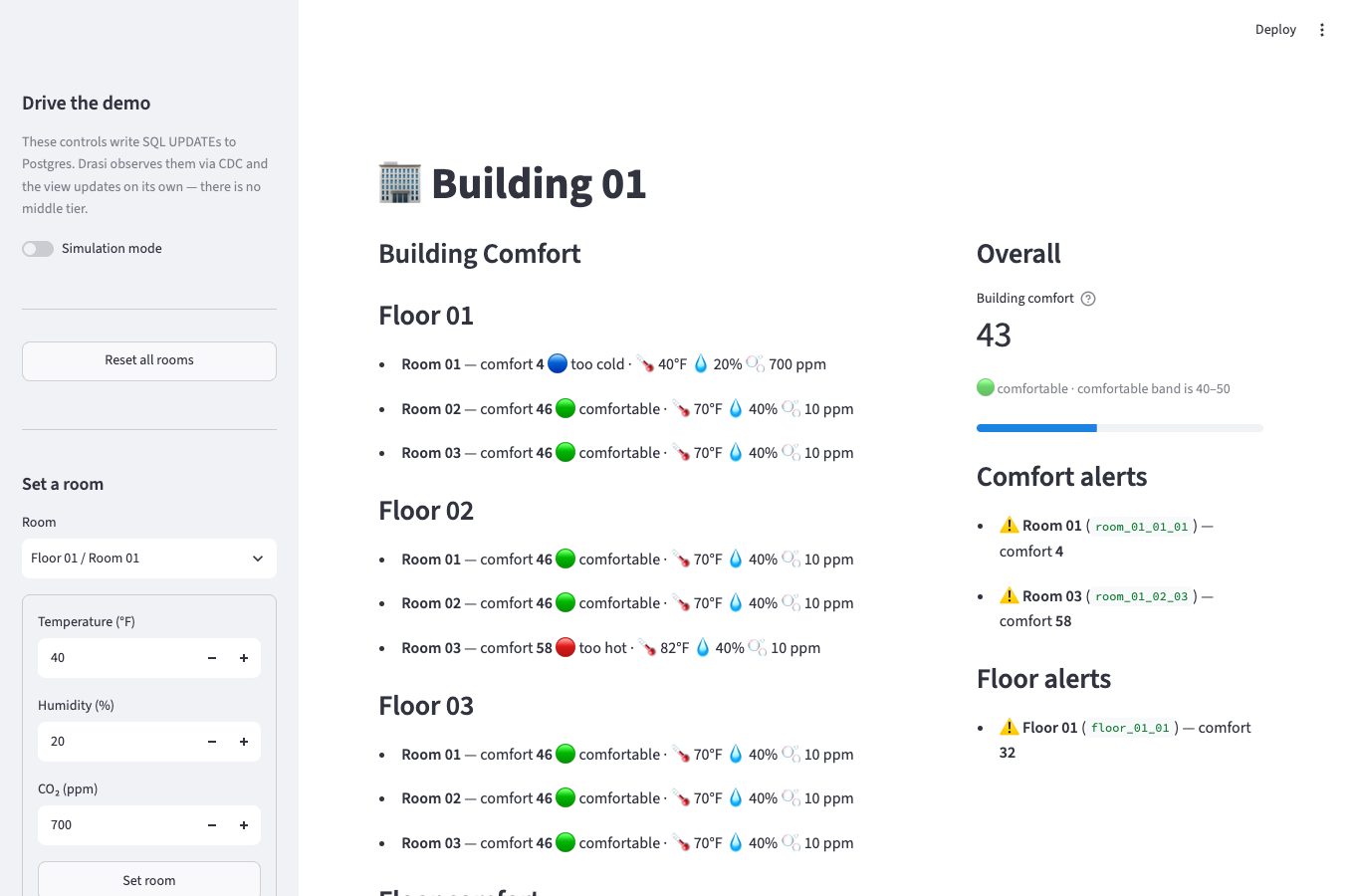
In the sidebar’s Set a room section, pick a room and give it new readings. Try pushing one out of the comfortable band — for example temperature = 40, humidity = 20, co2 = 700 — then press Set room.
Within about a second the UI reacts: that room drops out of the comfortable band, the overall meter falls, and entries appear in Comfort alerts and Floor alerts.
Reset a room (or all rooms)
Press Reset this room to return the selected room to the comfortable defaults (70 / 40 / 10), or Reset all rooms to return the whole building. The alerts clear and the building returns to green.
Set custom values
Try partial degradation — make a room too hot without touching CO2. Pick a room and set temperature = 82, humidity = 40, co2 = 10:
That gives 50 + (82-72) + (40-42) + 0 = 58 — above 50, so the room and its floor raise alerts even though humidity and CO2 are fine.
Let it run hands-free
Flip the Simulation mode toggle at the top of the sidebar. Every few seconds it picks a random room and assigns new readings, so comfort levels rise and fall and alerts come and go on their own. Flip it off to stop, then Reset all rooms to return everything to comfortable.
How It Works
The demo is two files in tutorials/building-comfort/: engine.py holds the source, the six queries, and the ComfortEngine (its Python reaction and the SQL writes); app.py renders the reaction’s state and hosts the sidebar controls. The complete engine.py is at the end. Here’s what each part does.
The Source
The engine installs the Postgres plugins and adds the source, pointing it at the tutorial database:
await drasi.install_plugin("source/postgres")
await drasi.install_plugin("bootstrap/postgres")
await drasi.start()

await drasi.add_source(
    "postgres",
    "db",
    {
        **POSTGRES,  # host, port, user, password, database
        "sslMode": "prefer",
        # Schema-qualified so the node labels match the queries.
        "tables": ["public.Building", "public.Floor", "public.Room"],
        "tableKeys": [
            {"table": "Building", "keyColumns": ["id"]},
            {"table": "Floor", "keyColumns": ["id"]},
            {"table": "Room", "keyColumns": ["id"]},
        ],
        "slotName": "drasi_building_comfort_slot",
        "publicationName": "drasi_building_comfort_pub",
    },
    bootstrap={"kind": "postgres", **POSTGRES},
)
The source uses logical replication (CDC) to stream changes from the Building, Floor, and Room tables. tableKeys tells Drasi the primary key of each table so it can track row identity across changes. The bootstrap provider loads the rows that already exist when the query starts; after that, every UPDATE the UI makes flows to Drasi as a change. The table names are PascalCase so the node labels Drasi sees match the queries exactly: (r:Room), (f:Floor), (b:Building). For every option the source accepts, see Configure the PostgreSQL Source.
The Continuous Queries
Each query computes a comfort level with the same formula. A value between 40 and 50 is comfortable; the seed values (70°F, 40%, 10 ppm) give 50 + (70-72) + (40-42) + 0 = 46.
floor( 50 + (r.temperature - 72) + (r.humidity - 42)
      + CASE WHEN r.co2 > 500 THEN (r.co2 - 500) / 25 ELSE 0 END )
There are six queries:
| Query | What it returns |
|---|---|
building-comfort-ui | One row per room with its comfort level — the feed that drives the building view |
building-comfort-level-calc | The building’s overall comfort level |
floor-comfort-level-calc | Each floor’s average comfort level |
room-alert | Only the rooms whose comfort is outside 40–50 |
floor-alert | Only the floors whose average comfort is outside 40–50 |
building-alert | The building, when its overall comfort is outside 40–50 |
Synthetic joins connect the entities
PostgreSQL knows Room.floor_id references Floor.id through a foreign key, but Drasi doesn’t read foreign keys. Instead, each query declares the relationships it needs as synthetic joins, so the Cypher can walk from room to floor to building. In drasi-lib a join is a plain mapping passed to add_query:
PART_OF_FLOOR = {
    "id": "PART_OF_FLOOR",
    "keys": [
        {"label": "Room", "property": "floor_id"},
        {"label": "Floor", "property": "id"},
    ],
}
PART_OF_BUILDING = {
    "id": "PART_OF_BUILDING",
    "keys": [
        {"label": "Floor", "property": "building_id"},
        {"label": "Building", "property": "id"},
    ],
}

await drasi.add_query(
    "building-comfort-ui", CYPHER, ["db"], joins=[PART_OF_FLOOR, PART_OF_BUILDING]
)
With those joins declared, a query can match the whole hierarchy:
MATCH (r:Room)-[:PART_OF_FLOOR]->(f:Floor)-[:PART_OF_BUILDING]->(b:Building)Aggregating up the hierarchy
Half of the queries don’t just read rooms — they roll comfort levels up the building. In a Continuous Query, an aggregate such as avg() inside a WITH groups by whatever non-aggregated values travel alongside it, exactly like SQL’s GROUP BY.
One stage — average a floor’s rooms. floor-comfort-level-calc keeps the floor f in the WITH, so avg() produces one value per floor:
WITH f, floor( 50 + (r.temperature - 72) + ... ) AS RoomComfortLevel
WITH f, avg(RoomComfortLevel) AS ComfortLevel
RETURN f.id AS FloorId, ComfortLevel
Two stages — average the averages. building-alert aggregates twice. Carrying f, b groups the first avg() by floor; dropping f from the next WITH widens the grouping so the second avg() rolls the floor averages up into a single building level:
WITH f, b, avg(RoomComfortLevel) AS FloorComfortLevel   // rooms  -> floor
WITH b,    avg(FloorComfortLevel) AS ComfortLevel        // floors -> building
Filtering on an aggregate. The floor-alert and building-alert queries place a WHERE after the aggregation — like SQL’s HAVING — so a floor or the building only shows up while its average is outside the comfortable band:
WITH f, avg(RoomComfortLevel) AS ComfortLevel
WHERE ComfortLevel < 40 OR ComfortLevel > 50
RETURN f.id AS FloorId, ComfortLevel
Because these are continuous queries, the aggregates are maintained incrementally: when one room’s reading changes, Drasi recomputes only the affected floor and building averages and emits just that change — it never rescans every room.
The Python Reaction
This is where the Python demo differs from a built-in dashboard. Instead of configuring a dashboard reaction, we register a Python reaction — a plain callback subscribed to all six queries. Each time a query’s result set changes, Drasi calls it with the query id and the diffs, and the callback updates a thread-safe snapshot:
def on_results(event):
    query = QUERIES_BY_ID[event["query_id"]]
    with lock:
        store = snapshot[query.id]  # this query's rows, keyed by id; the UI reads it
        for diff in event["results"]:
            match diff:
                case {"type": "DELETE", "data": dict() as row}:
                    store.pop(row[query.key], None)
                case {"after": dict() as row} | {
                    "data": dict() as row
                }:  # ADD / UPDATE / aggregation
                    store[row[query.key]] = row


await drasi.add_python_reaction("ui", [q.id for q in QUERIES], on_results)
Each query knows the RETURN column that identifies its rows (query.key — RoomId, FloorId or BuildingId). Every diff carries the affected row in data (for an UPDATE it equals after), so the snapshot is kept by row identity — upsert on ADD/UPDATE, drop on DELETE. The type is one of ADD, UPDATE, or DELETE. This works the same for the per-room queries and the aggregate floor/building queries, which emit an UPDATE as their average changes. See Python reactions for the full callback contract.
Embedding the engine in Streamlit
Streamlit re-runs its script top to bottom on every interaction, which doesn’t suit a long-lived async engine. So the engine runs on its own asyncio event loop in a background daemon thread, created exactly once with @st.cache_resource and shared across every browser session:
@st.cache_resource
def get_engine():
    engine = ComfortEngine()  # spins up the background loop + Drasi
    engine.wait_ready()
    return engine
Each run, app.py reads engine.snapshot() and renders the building, the meter, the floor table and the alert lists. A one-and-a-half-second auto-refresh keeps the view live. Because the reaction only updates the snapshot when a query actually changes, the UI reflects each UPDATE the moment it lands — no polling of the database.
The centerpiece building panel is just a loop over the building-comfort-ui rows, grouped by floor, picking a status emoji from each room’s comfort level:
for floor_name in sorted(by_floor):
    st.markdown(f"### {floor_name}")
    for room in by_floor[floor_name]:
        emoji, label = comfort_status(room["ComfortLevel"])
        st.markdown(
            f"- **{room['RoomName']}** — comfort **{room['ComfortLevel']}** {emoji} {label}"
        )
And the reaction renders it live:
Other ways to consume a query
A Python reaction is the most direct way to turn query changes into a UI, but it isn’t the only option drasi-lib gives you:
- Stream the changes with
async for event in await drasi.query_results("room-alert")and drive any front end you like. See Streaming results. - Reuse a published reaction such as the dashboard reaction plugin, exactly as the Postgres dashboard example does — no UI code at all.
Because Drasi emits only what changed — never the full result set — whichever you choose stays live without polling.
Putting It All Together
The sections above walked through the Drasi side one piece at a time. Here it is assembled into the single engine.py — the source, the two synthetic joins, the six queries, and the ComfortEngine that runs them and writes back. app.py (the Streamlit UI) imports ComfortEngine, the query ids, and the comfort band from it:
import asyncio
import os
import random
import threading
from dataclasses import dataclass, field

os.environ.setdefault("RUST_LOG", "warn")  # quiet the engine's INFO logging

import psycopg
from drasi import Drasi

# --- The source: the tutorial's PostgreSQL database ---
CONNECTION = {
    "host": os.environ.get("POSTGRES_HOST", "localhost"),
    "port": int(os.environ.get("POSTGRES_PORT", "5732")),
    "database": os.environ.get("POSTGRES_DATABASE", "building_comfort"),
    "user": os.environ.get("POSTGRES_USER", "drasi_user"),
    "password": os.environ.get("POSTGRES_PASSWORD", "drasi_password"),
    "sslMode": "prefer",
}
SOURCE_CONFIG = {
    **CONNECTION,
    "tables": ["public.Building", "public.Floor", "public.Room"],
    "tableKeys": [
        {"table": "Building", "keyColumns": ["id"]},
        {"table": "Floor", "keyColumns": ["id"]},
        {"table": "Room", "keyColumns": ["id"]},
    ],
    "slotName": "drasi_building_comfort_slot",
    "publicationName": "drasi_building_comfort_pub",
}
BOOTSTRAP_CONFIG = {"kind": "postgres", **CONNECTION}
# The UI writes room updates through a psycopg connection built from CONNECTION
# (psycopg spells the database key "dbname"), so Drasi observes them via CDC.

COMFORT_DEFAULTS = {"temperature": 70, "humidity": 40, "co2": 10}
COMFORT_MIN, COMFORT_MAX = 40, 50

# --- Two synthetic joins walk Room -> Floor -> Building ---
PART_OF_FLOOR = {
    "id": "PART_OF_FLOOR",
    "keys": [
        {"label": "Room", "property": "floor_id"},
        {"label": "Floor", "property": "id"},
    ],
}
PART_OF_BUILDING = {
    "id": "PART_OF_BUILDING",
    "keys": [
        {"label": "Floor", "property": "building_id"},
        {"label": "Building", "property": "id"},
    ],
}


@dataclass(frozen=True)
class Query:
    id: str
    key: str  # the RETURN column that identifies each row
    cypher: str
    joins: list[dict] = field(default_factory=list)


# Every query computes the same comfort level; a value in 40-50 is comfortable.
QUERIES = [
    # building-comfort-ui: one row per room with its comfort level. Drives the
    # building view; walks Room -> Floor -> Building through the two joins.
    Query(
        id="building-comfort-ui",
        key="RoomId",
        joins=[PART_OF_FLOOR, PART_OF_BUILDING],
        cypher="""
        MATCH (r:Room)-[:PART_OF_FLOOR]->(f:Floor)-[:PART_OF_BUILDING]->(b:Building)
        RETURN r.id AS RoomId, r.name AS RoomName, f.id AS FloorId, f.name AS FloorName,
               b.name AS BuildingName, r.temperature AS Temperature, r.humidity AS Humidity,
               r.co2 AS CO2,
               floor(50 + (r.temperature - 72) + (r.humidity - 42)
                     + CASE WHEN r.co2 > 500 THEN (r.co2 - 500) / 25 ELSE 0 END) AS ComfortLevel
        """,
    ),
    # floor-comfort-level-calc: each floor's comfort, the average of its rooms.
    Query(
        id="floor-comfort-level-calc",
        key="FloorId",
        joins=[PART_OF_FLOOR],
        cypher="""
        MATCH (r:Room)-[:PART_OF_FLOOR]->(f:Floor)
        WITH f, floor(50 + (r.temperature - 72) + (r.humidity - 42)
                      + CASE WHEN r.co2 > 500 THEN (r.co2 - 500) / 25 ELSE 0 END) AS RoomComfort
        WITH f, avg(RoomComfort) AS ComfortLevel
        RETURN f.id AS FloorId, ComfortLevel
        """,
    ),
    # room-alert: only the rooms whose comfort is outside the 40-50 band.
    Query(
        id="room-alert",
        key="RoomId",
        cypher="""
        MATCH (r:Room)
        WITH r.id AS RoomId, r.name AS RoomName,
             floor(50 + (r.temperature - 72) + (r.humidity - 42)
                   + CASE WHEN r.co2 > 500 THEN (r.co2 - 500) / 25 ELSE 0 END) AS ComfortLevel
        WHERE ComfortLevel < 40 OR ComfortLevel > 50
        RETURN RoomId, RoomName, ComfortLevel
        """,
    ),
    # building-comfort-level-calc (average of floor averages), floor-alert, and
    # building-alert follow the same formula with avg()/WHERE variations.
]


class ComfortEngine:
    """Runs Drasi on a background loop and exposes a thread-safe snapshot."""

    def __init__(self):
        self._lock = threading.Lock()
        self._results = {}  # query id -> {row key -> row}
        self._key_by_id = {q.id: q.key for q in QUERIES}
        self._simulation = False
        self._ready = threading.Event()
        self._drasi = None
        threading.Thread(target=self._run, daemon=True).start()

    def _run(self):
        loop = asyncio.new_event_loop()
        asyncio.set_event_loop(loop)
        loop.run_until_complete(self._start())
        self._ready.set()
        loop.run_forever()

    async def _start(self):
        self._drasi = await Drasi.create("building-comfort")
        for plugin in ("source/postgres", "bootstrap/postgres"):
            await self._drasi.install_plugin(plugin)
        await self._drasi.start()

        await self._drasi.add_source("postgres", "db", SOURCE_CONFIG, bootstrap=BOOTSTRAP_CONFIG)
        for q in QUERIES:
            await self._drasi.add_query(q.id, q.cypher, ["db"], joins=q.joins or None)
        for q in QUERIES:
            await self._drasi.wait_for_query(q.id)
            rows = await self._drasi.get_query_results(q.id)
            self._results[q.id] = {r[q.key]: r for r in rows}

        await self._drasi.add_python_reaction("ui", [q.id for q in QUERIES], self._on_results)

    def _on_results(self, event):
        key = self._key_by_id[event["query_id"]]
        with self._lock:
            store = self._results.setdefault(event["query_id"], {})
            for diff in event["results"]:
                match diff:
                    case {"type": "DELETE", "data": dict() as row}:
                        store.pop(row[key], None)
                    case {"after": dict() as row} | {"data": dict() as row}:
                        store[row[key]] = row

    def snapshot(self):
        with self._lock:
            return {
                "simulation": self._simulation,
                "results": {q: list(s.values()) for q, s in self._results.items()},
            }

    # set_room(id, t, h, co2) and reset_room(id=None) write UPDATEs to Postgres;
    # set_simulation(on) toggles a background task that assigns a random room new
    # readings every few seconds. Drasi observes each write via CDC.
That’s the whole Drasi side in one file: one source, two synthetic joins up the Room -> Floor -> Building hierarchy, six continuous queries (four of them aggregations), and a reaction that keeps a snapshot the UI renders and drives.
Clean Up
When you’re finished, stop the app with Ctrl+C in the terminal, then remove the database container:
# Stop containers, keep data
bash scripts/cleanup.sh

# Stop containers and delete the data volume
bash scripts/cleanup.sh --volumes
# Stop containers, keep data
powershell -ExecutionPolicy Bypass -File scripts/cleanup.ps1
# Stop containers and delete the data volume
powershell -ExecutionPolicy Bypass -File scripts/cleanup.ps1 -RemoveVolumesWhat You Learned
- Sources connect Drasi to live data — here, PostgreSQL via Change Data Capture, configured in a few lines of Python.
- Continuous Queries with synthetic joins let you model relationships (room → floor → building) and compute derived values (comfort levels) that stay current automatically.
- Reactions turn query changes into action. A Python reaction gave you a live UI from a callback and a snapshot — no bespoke web server, and complete control over the rendering.
- Because Drasi emits only what changed, everything updates the instant the data does, with no polling.
From here, try editing the comfort formula or the layout in app.py, adding a new alert query, or pointing the source at your own database.
Feedback
Was this page helpful?
Glad to hear it! Please tell us how we can improve.
Sorry to hear that. Please tell us how we can improve.